Warehouses running forklift fleets
Forklifts are the most dangerous machines in the building and the most fined. Daily checks, lockout on failure and a record per truck keep the fleet safe and the paperwork ready.
A register for every forklift, scanner, printer and dock door — with daily safety checks, maintenance plans, repairs, spare parts and loans, all tied to the same asset record.
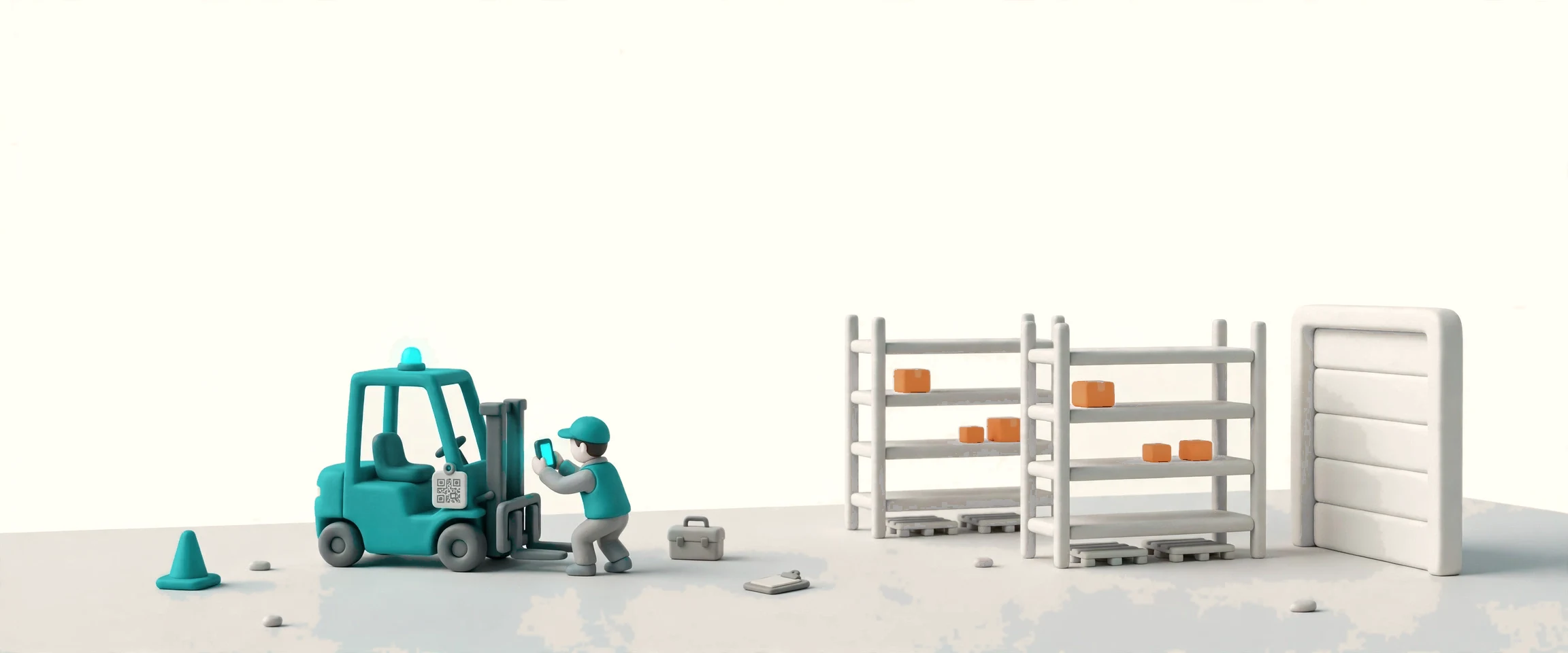

Docklify Assets is the equipment register for the warehouse floor. Every forklift, pallet jack, scanner, label printer, dock door and dock leveler gets one record — a number, a type, a model, a purchase date, a warehouse and a place in plain words — and a QR label that opens that record from any phone. Around the record, the daily work hangs together: the morning safety check, the maintenance plan, the repair ticket, the spare part taken off the shelf and the loan to the next shift. A machine that fails a critical check locks itself out of work until it is repaired, and WMS skips it when it assigns equipment. Nothing about a machine lives in a chat thread or on paper any more: buy it, check it, fix it, lend it — the record follows it for its whole life.
Forklifts are the most dangerous machines in the building and the most fined. Daily checks, lockout on failure and a record per truck keep the fleet safe and the paperwork ready.
One place for every plan, job and cost: due work on a banner, repairs on tickets, and the lifetime cost of each machine in one view.
Each warehouse keeps its own register on the same foundation, so a machine lent across sites stays traceable from request to return.
Clipboards become phone screens: scan the QR label, answer the checklist, file the repair — the record is written where the work happens.
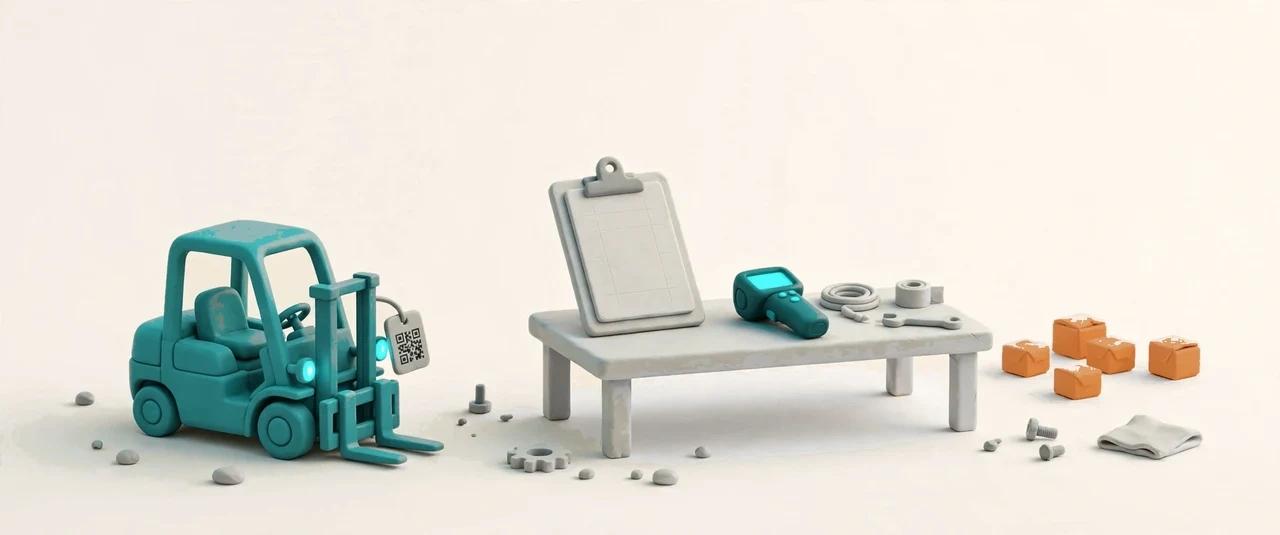

Every machine starts with a guided setup: pick the type — forklift, pallet jack, scanner, label printer, dock door, dock leveler or other — and the number takes itself, AST-000001 and up, unique inside your tenant and editable when you need it. The record holds the model, the purchase date, the warehouse and the place in plain words, like “beside dock door 3”, so nobody has to memorise a location code. The status follows a simple machine: in use, idle, under repair, and scrapped as the final state that locks the record. At the end of setup the system prints a QR label for the machine; scan it from any phone and you land on the asset page, with its status, its inspection result for today and its repair history in front of you.
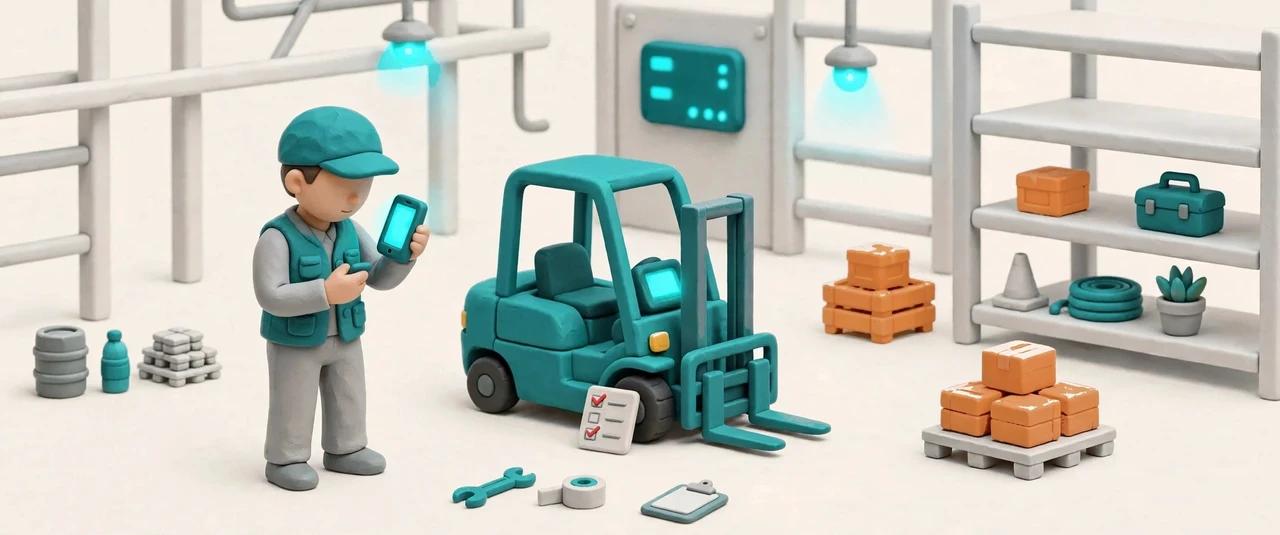

Forklifts fall under the OSHA pre-shift check, and the phone carries it out. The worker scans the machine or picks it from the inspection list, and the checklist runs one item per screen with big glove-friendly buttons: pass, fail or not applicable. Forklift checks follow the 16-item OSHA list — brakes, steering, forks, chains, hydraulics — and each type of machine has its own template, with a default ready when no custom one exists. A failed critical item fails the whole inspection and locks the machine to under repair at once, and the result page offers a one-tap repair ticket. The same machine can be re-inspected the same day for a second look, and every answer stays on the record with the item text as it was that day.
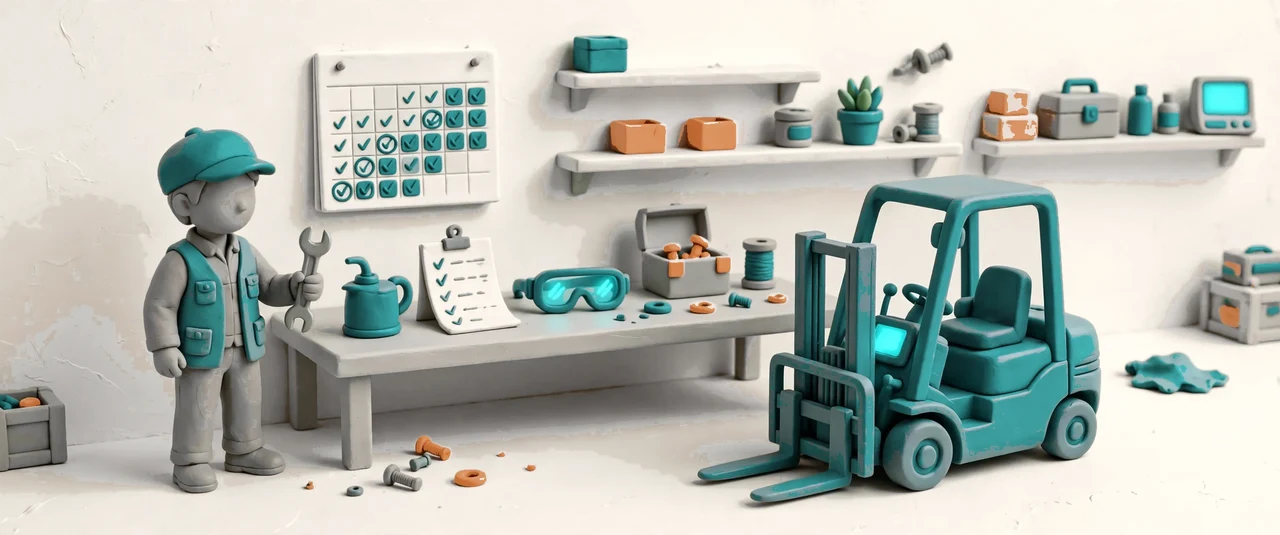

Oil changes run on memory in too many warehouses; here they run on a plan. A maintenance plan names the job and the cycle — every 90 days, every 500 hours, or whichever comes first — and it covers one machine or a whole type at once. A daily scan turns due plans into tasks, and the overview banner shows what is overdue in red and what falls due inside seven days. The technician opens the task on the phone, ticks the items off one by one, records the parts used and the hours spent, and adds a photo when it helps. Finishing the job writes the maintenance record, files the cost lines and pushes the next due date forward by the same cycle, so the plan never needs remembering.
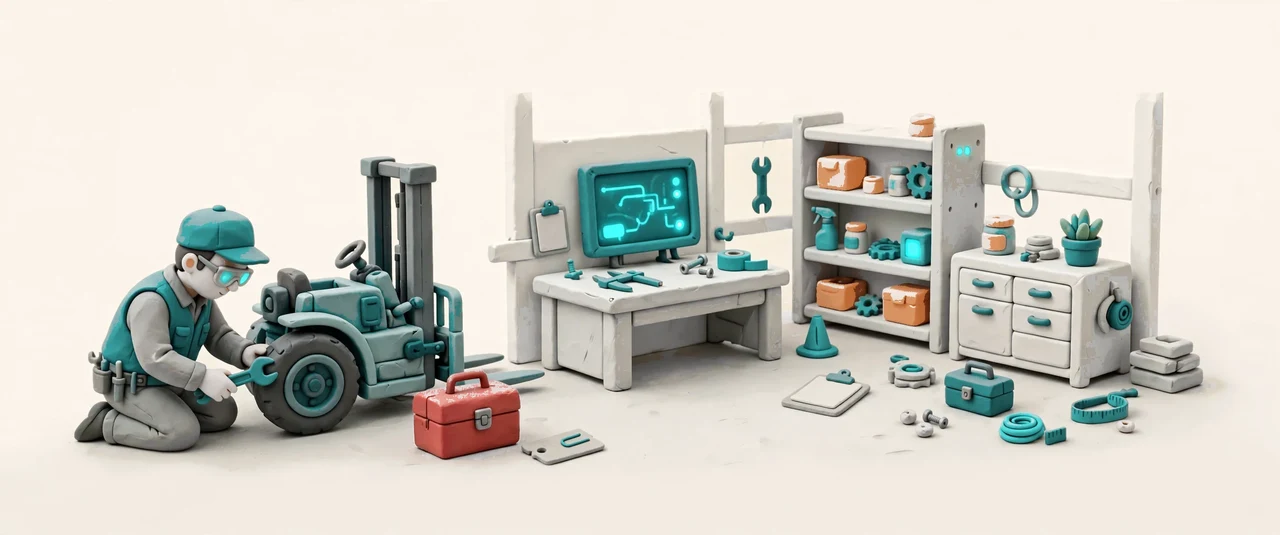

A repair starts in three places and ends in one record. Report it from the asset page, from a failed inspection with one tap, or from the maintenance overview — and a ticket opens with the machine attached, the subject already naming its number and type. The machine moves to under repair by itself, so no job is assigned to it while it is down. The technician takes the job, records the cause, the fix, the parts changed, the downtime and the cost, and when the work is done the ticket closes and the repair record links back to it. Release stays a human decision: the person who signs the machine back to work can run a fresh inspection first, because repaired does not always mean ready.
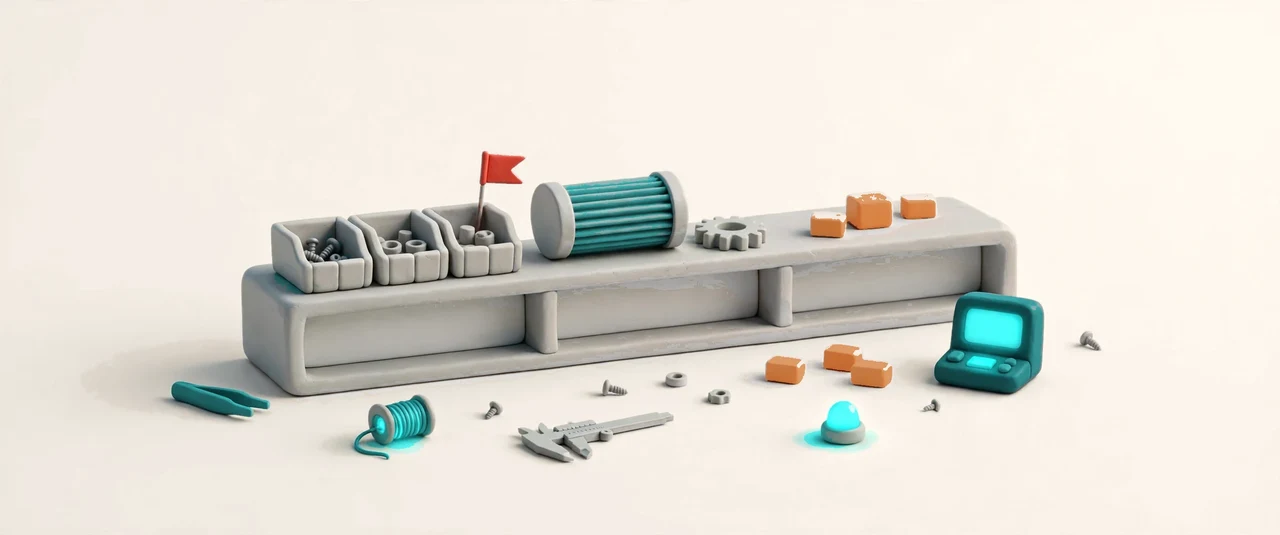

A repair stalls most often not for want of skill but for want of a part. The parts shelf keeps its own ledger: each part has a number, a name, a category, a unit, a safety stock and a reorder point, with a place on the shelf in plain words. Stock is never typed in by hand — it is the sum of every move: inbound, outbound and count adjustments, each with a quantity, a unit cost and, for repair use, a link to the maintenance record. When stock falls to the reorder point the part jumps to the top of the list in a red alert, and the team sees what to order before the next repair needs it. A part taken out of service keeps its history; nothing already counted is ever rewritten.
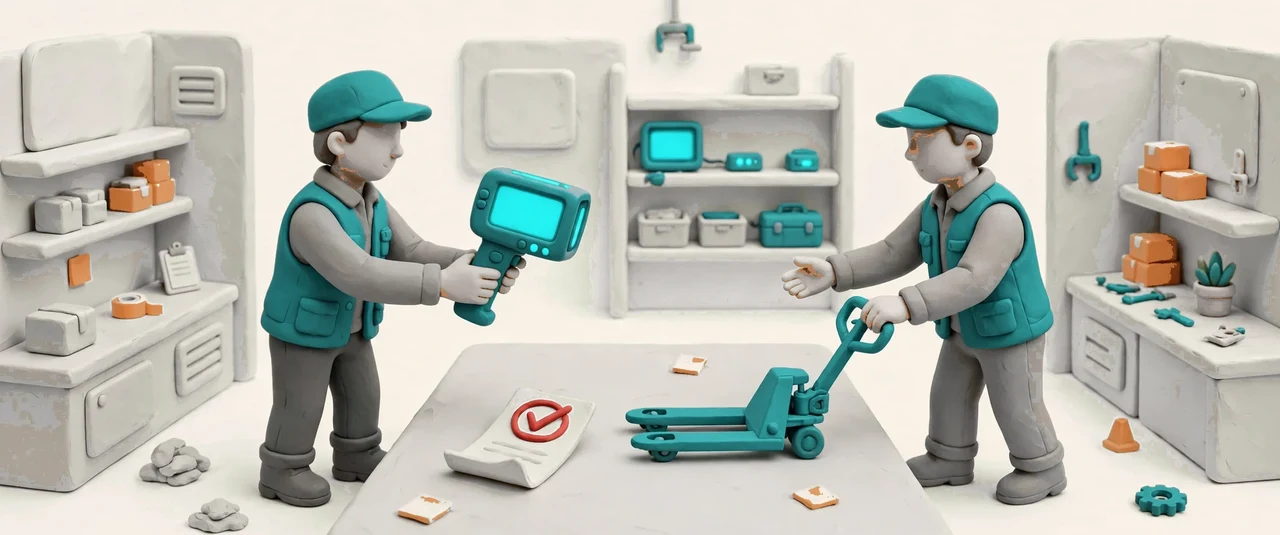

Borrowing a scanner for the stock count or a pallet jack for the peak used to be a message in a group chat. Now it is a loan with a number: ALO-000001 and up, naming the machine, the borrower, the dates and the purpose. The loan moves through request, approval, borrowed and returned, with approval in between so nobody lends to themselves, and a rejection always carries a reason. One machine holds one active loan at a time — the system checks twice, at request and at handover — and a scrapped machine cannot be borrowed at all. Overdue is computed live, never stored: a borrowed loan past its return date shows its date in red on the list and on the asset page, so whoever is holding the machine is visible.
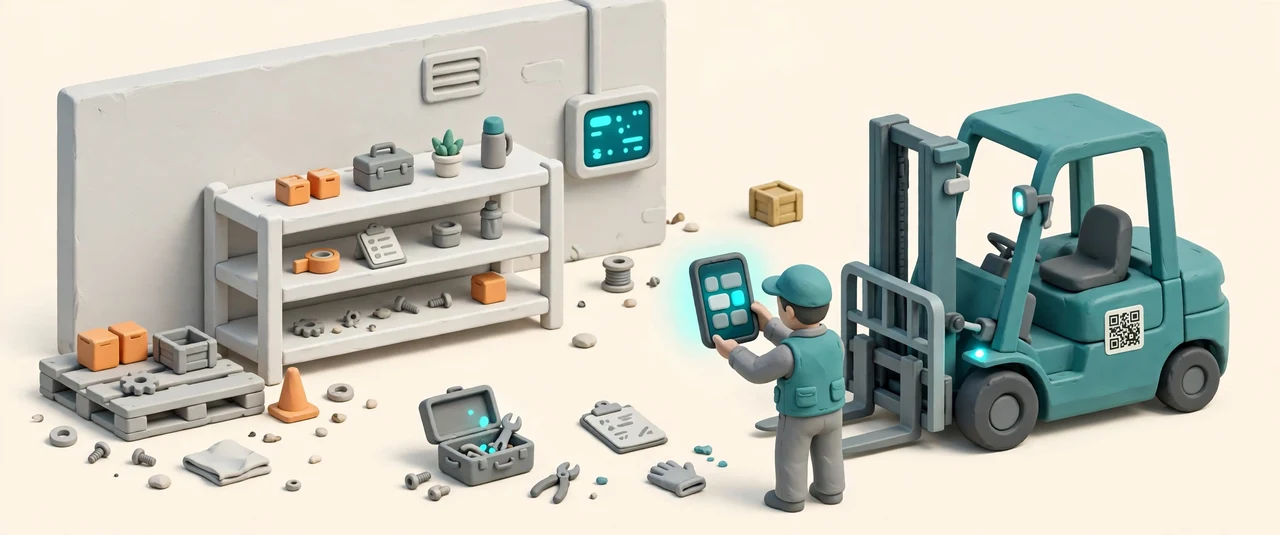

The four jobs that happen beside a machine live on the phone, not on a desk. Scan the QR label on the machine, or type its number, and the asset card opens: number, type, model, status, warehouse and place, who has it now and until when, today’s inspection and the last one. From the card the team inspects, borrows, returns or reports a repair, with the same rules as the desktop — approval still happens before handover, a failed inspection still offers the repair ticket, and every write is checked back against the record before the card refreshes. Registry work — creating machines, categories, plans and parts — stays on the desktop, where it belongs.
In use, idle, under repair, scrapped — scrapped is final and locks the record.
AST-000001 and up, taken atomically, editable, unique inside your tenant.
A default OSHA template for forklifts, custom templates on desktop, and history keeps the item text as it was.
Maintenance and repair costs by machine, type and month — parts, labor and outside work included.
Task assignment checks today’s inspection result and the asset status before it hands a machine to a job.
Outside repair bills link to Accounts Payable, so the same money is never counted twice.
Failed inspections and repairs carry photos, up to five per machine, visible on the asset page.
Inspections, maintenance, costs and loans all hang off the same asset page.