3PL and carrier fleets
You run trucks for other people’s freight. Papers, checks, repairs and fuel for every unit sit in one file, and dispatch only assigns trucks that are fit to roll.
A home for every vehicle — registry, documents, daily inspections, maintenance, work orders, fuel and cost — so dispatch always knows which trucks are fit to roll.


Docklify Fleet is the maintenance brain for the trucks, trailers and yard vehicles behind your operation. Each vehicle has one file — plate, VIN, make and model, year and type — with its papers, its daily inspections, its maintenance plan, its repair history and its fuel log in the same place. Drivers check the truck before the trip on their phones; a failed check locks the vehicle and opens a work order. Maintenance runs on mileage and time, so an oil change falls due when the odometer says so, not when someone remembers. And dispatch only ever sees roadworthy vehicles: a truck in repair is out of the assignment pool until it is released. The result is a fleet that spends its days on the road, not in the shop — with the cost of every mile on the record.
You run trucks for other people’s freight. Papers, checks, repairs and fuel for every unit sit in one file, and dispatch only assigns trucks that are fit to roll.
Tractors and drivers on container work. Drayage orders check vehicle status before assignment, and completed miles flow back into fuel and cost.
Your own trucks, your own freight — and the yard vehicles that move containers inside the gate. One register covers the road fleet and the yard fleet alike.
Work orders with photos, parts and labor on the record, acceptance before the truck returns to the road, and costs that settle against the maintenance file.
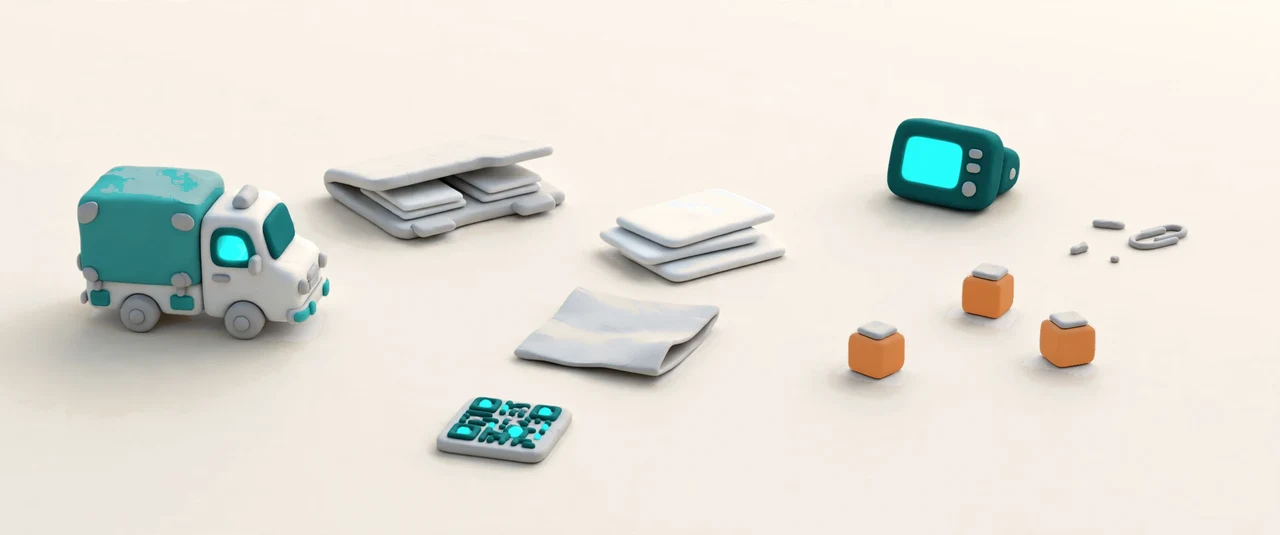

Every vehicle starts with a file: plate, VIN, make and model, year, and type — box truck, tractor, trailer or yard vehicle — plus its status: in use, under repair, idle or scrapped. The papers live on the same file: insurance, annual inspection and registration, each with an expiry date, and the reminder centre speaks in plain words — “12 days left”, “expired 3 days ago” — with 30 days in yellow and 7 days in red. The odometer is typed in by hand or synced from Samsara and Motive, and a QR label on the truck opens its current condition from a phone scan. Bulk import brings a whole fleet in at once instead of one truck at a time.
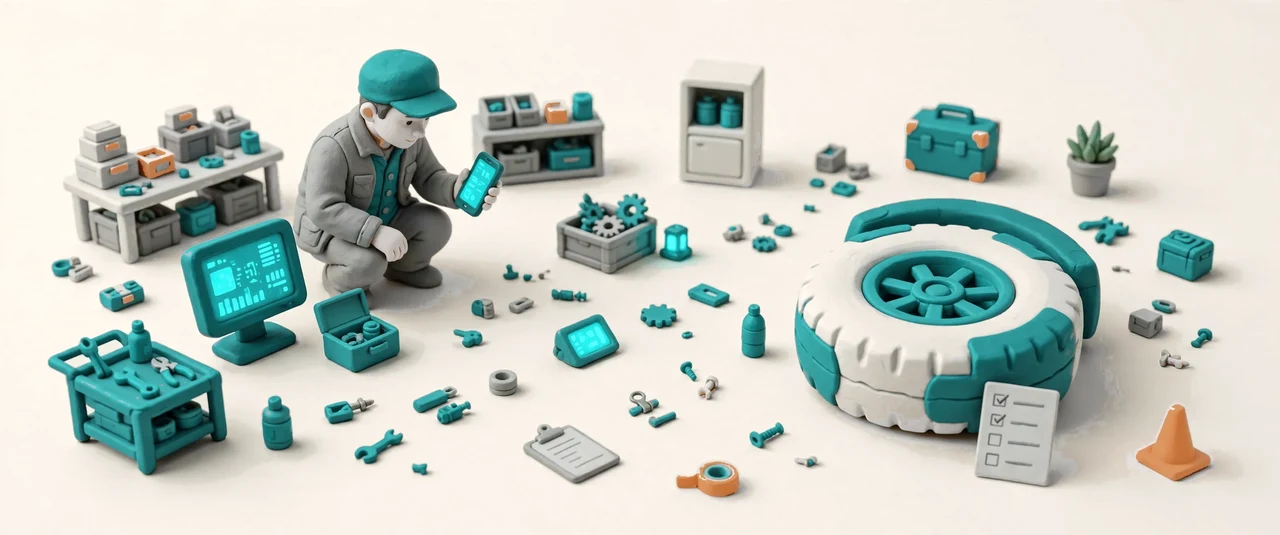

Nobody finds out about bad brakes on the highway. The driver runs the daily vehicle inspection on the phone before the trip — and again after it — one item per screen with big buttons: tires, lights, brakes, fluids, papers. The checks run on the same inspection engine as Assets, with vehicle-specific items, and a failed item locks the vehicle and opens a repair work order, so a truck that should not roll cannot be assigned. The inspection history sits on the vehicle file with the inspector and the odometer reading of the day, and the pre-trip list is short enough to finish before the engine warms up.


Maintenance follows the odometer and the calendar at once. Plans name the job and the cycle — oil change every 5,000 miles or 3 months, tire check monthly, brake check every 10,000 miles, annual inspection every year — whichever comes first, and each vehicle type carries its own seed templates. The calendar view shows the whole fleet’s maintenance schedule by next due date, and a daily scan turns due plans into tasks with a reminder. The technician confirms completion on the phone, the maintenance record is written, and the next due date moves forward by the same cycle. The engine is the Assets maintenance engine, shared — one code path, two kinds of machines.
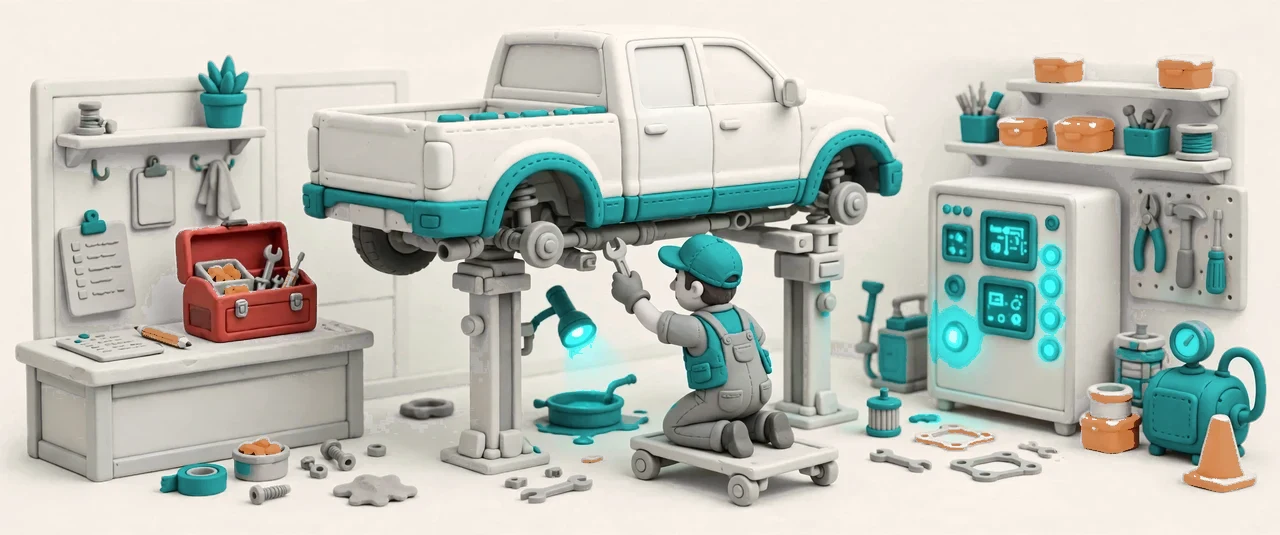

A fault is reported from the phone with a photo, and the work order carries it from there: dispatch assigns it, the shop repairs it, the fleet manager accepts it, and the cost settles. Labor and parts are reviewed line by line before acceptance, and progress is visible at both ends — the driver sees where the truck stands, the shop sees what is waiting. The order runs on the Tickets engine with the vehicle-maintenance category, so it follows the same flow as every other ticket in the house. When the job is accepted, the cost syncs to the maintenance record of the vehicle, and the truck returns to the assignment pool.


Fuel is logged where the truck is: pick the vehicle, type the odometer, the gallons and the amount, and the entry takes 30 seconds on the phone. The system works out this tank’s MPG from the miles since the last fill-up and keeps the trend per vehicle, so a truck that starts drinking stands out. Two alerts watch for trouble: MPG down 20% or more against the recent run, and a single fill bigger than the tank should hold — both signs of theft, a leak or a vehicle problem. The odometer only ever moves forward; a lower reading is refused at entry, and the driver behind the wheel is filled in from the driver file when one exists.


Some trucks earn their keep and some eat it. The cost view adds up everything a vehicle consumes — fuel, repairs, insurance and depreciation — into one total per truck, and lines the fleet up side by side so the most expensive unit is impossible to miss. The numbers support the repair-or-replace call: a truck that costs more to keep than to swap shows its case in its own totals, and the report exports for the meeting where the decision is made. Completed miles from TMS and Drayage orders flow back into the same totals, so cost per mile is computed on real work, not on estimates.

Dispatch never has to guess whether a truck is fit. TMS, Drayage and YMS all ask Fleet before they assign work, and the rule is simple: only vehicles in use are offered, and a truck under repair is out of the pool until it is released. The assignment itself is written to the dispatch log — which app asked, which order, which vehicle — and when the order finishes, the real miles come back to Fleet and land in fuel and cost. The yard asks the same question for its own work: a yard vehicle moves a container only when Fleet says it is fit. One availability check, every app, no phone calls to the shop.
Insurance, inspection, registration, licence: “12 days left” or “expired 3 days ago” — 30 days yellow, 7 days red.
Driver–vehicle binding from People driver records, with licence expiry reminders.
Insurance, inspection, maintenance, documents and licence expiries in one list, sorted by urgency.
Typed in by hand or synced from Samsara and Motive telematics.
The whole fleet’s maintenance schedule on one calendar, by next due date.
Live position comes from Samsara and Motive integrations; Fleet keeps the vehicle file, not its own tracking.
Labor, parts and total on every work order, settled against the maintenance record.
A sharp MPG drop or an oversized fill raises an alert before the next trip.