Floor pickers and packers
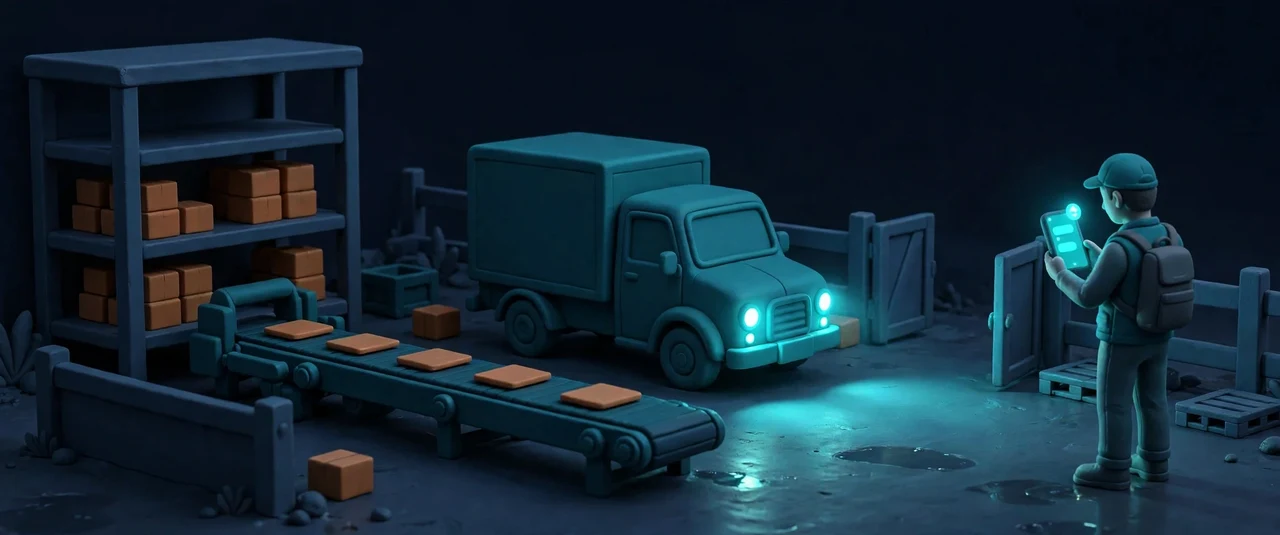
Your queue is your day: scan the location, scan the item, scan the tote, and the phone says what is next. Mistakes are blocked at the scan, not discovered at the dock.
One phone entry to every Docklify app on the floor: scan-guided tasks for WMS, TMS, Drayage, YMS, RMS, Sort Hub, Driver, Attend, AI Rollie, Fleet and Assets — the same jobs, the same data, no desk needed.
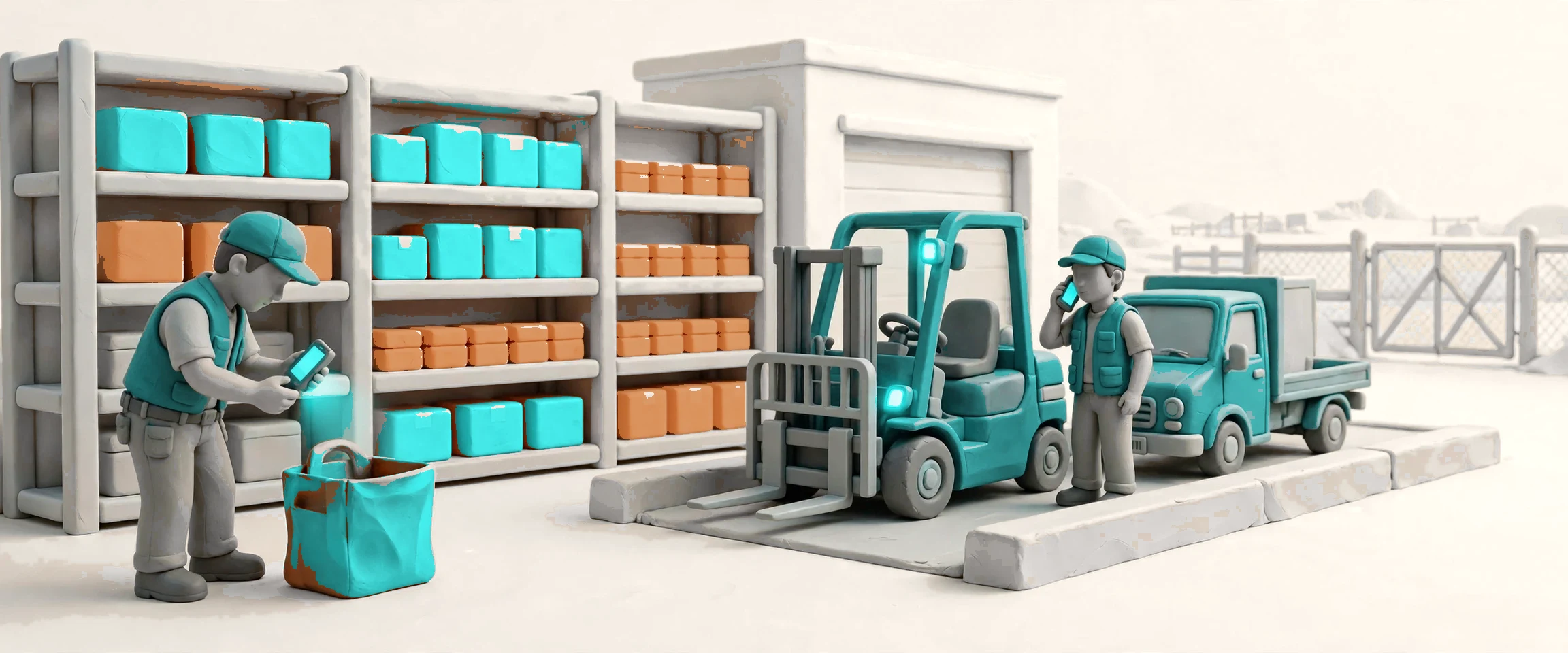
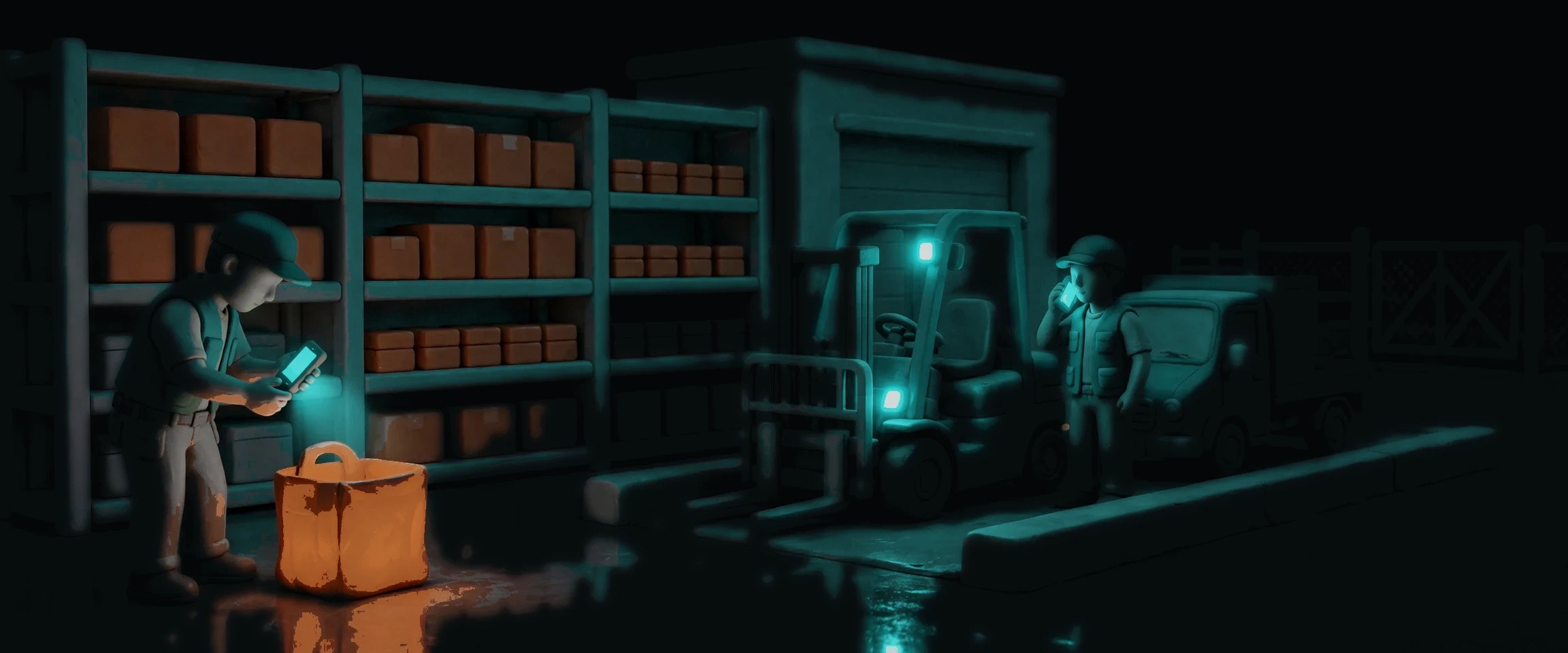
Mobile is the phone face of Docklify: the same warehouse, transport, yard and returns work your desktop runs, rebuilt for the person standing on the floor with one hand free. Eleven phone apps share one sign-in, one Home, one Notifications inbox and one More menu, and every screen follows the same design system — big buttons, few inputs, plain words when something goes wrong. A picker scans a tote and the system answers with the order, the slot and the next step; a driver photographs a delivery and the office sees it the same second; a yard crew checks a trailer in at the gate with no signal at all, and the record lands when the connection returns. The phone never pretends to be a desk: it carries the job, not the administration.
Your queue is your day: scan the location, scan the item, scan the tote, and the phone says what is next. Mistakes are blocked at the scan, not discovered at the dock.
Jobs, stop-by-stop navigation and document capture on one phone. Arrival, departure and the signed, photographed proof of delivery land in the office the moment they happen.
Check-ins, trailer moves and inspections happen at the gate, in the rain, with patchy signal. The phone keeps the work moving and syncs when the connection returns.
You are not at your desk either. Approvals, exceptions and the state of the floor reach you on the phone, so a stuck task waits minutes, not a shift.
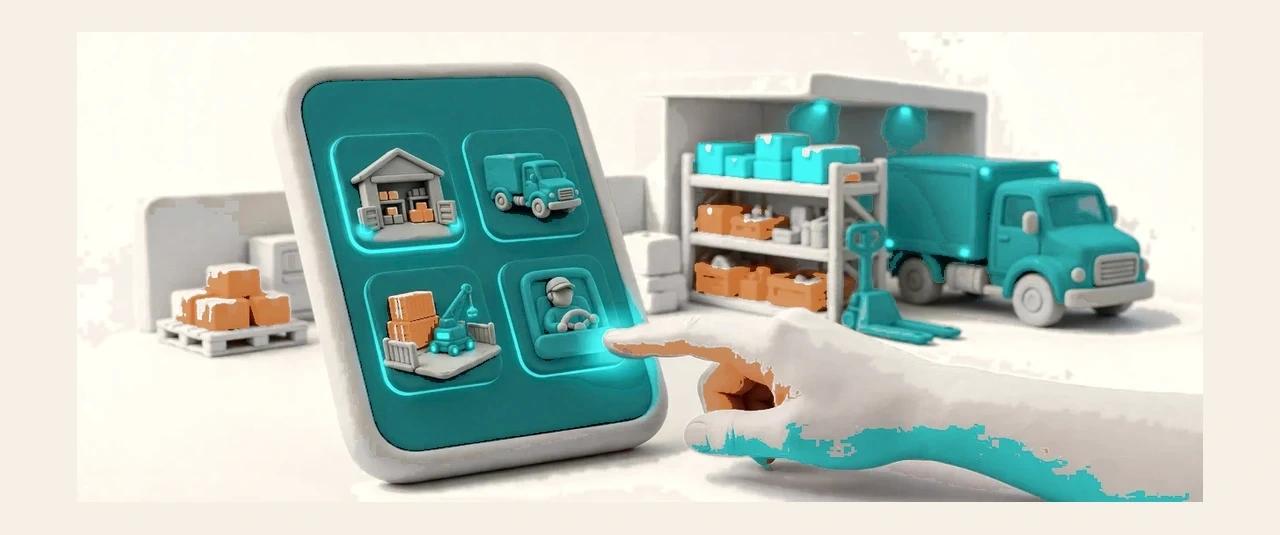
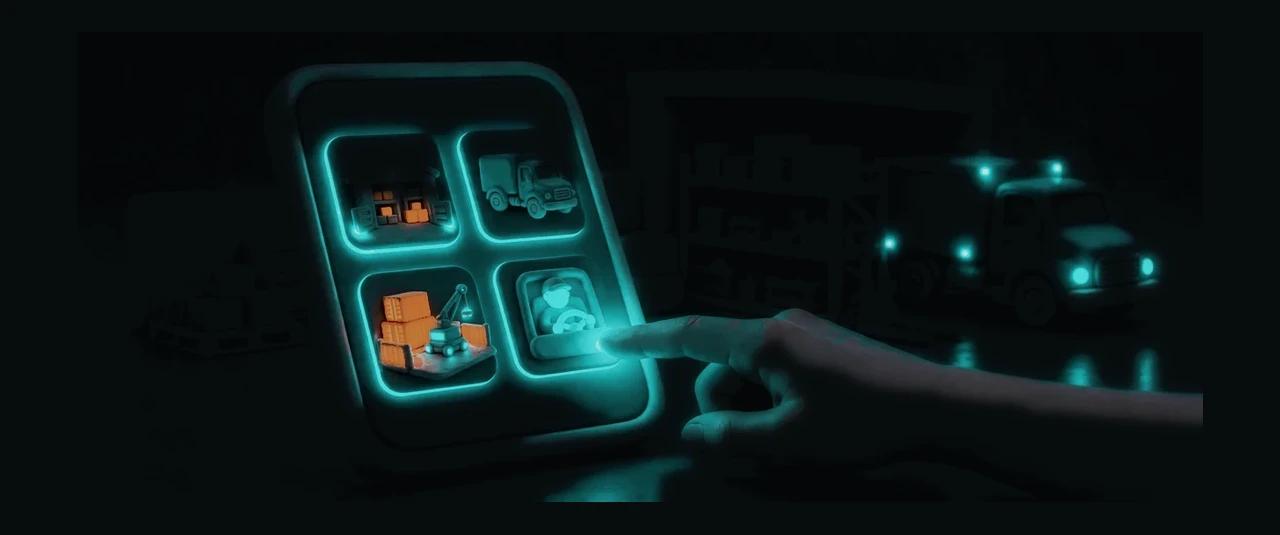
WMS, TMS, Drayage, YMS, RMS, Sort Hub, Driver, Attend, AI Rollie, Fleet and Assets live behind one sign-in, and the app switcher moves between them without asking you to log in again. Each app keeps its own home and its own queue, but the shell never changes: the same brand bar, the same greeting, the same three tabs. A picker who covers a driver shift, or a yard hand who picks up a returns job, already knows where everything is — the eleventh app feels like the first. The switcher itself is one tap away on every Home screen, and the app you used last is where you land when you open the phone again.
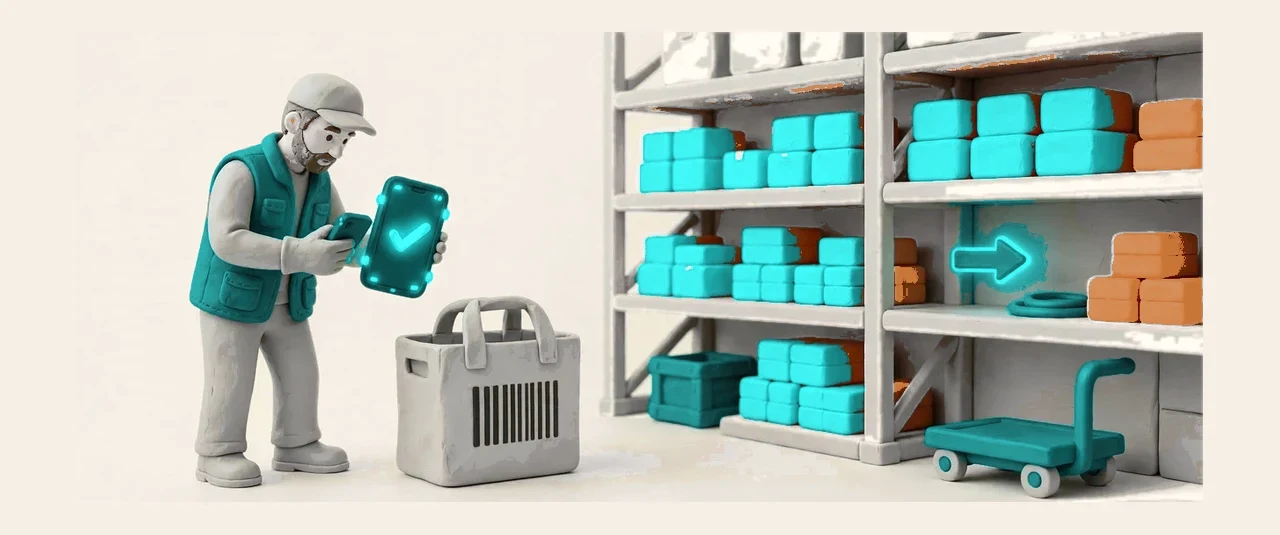
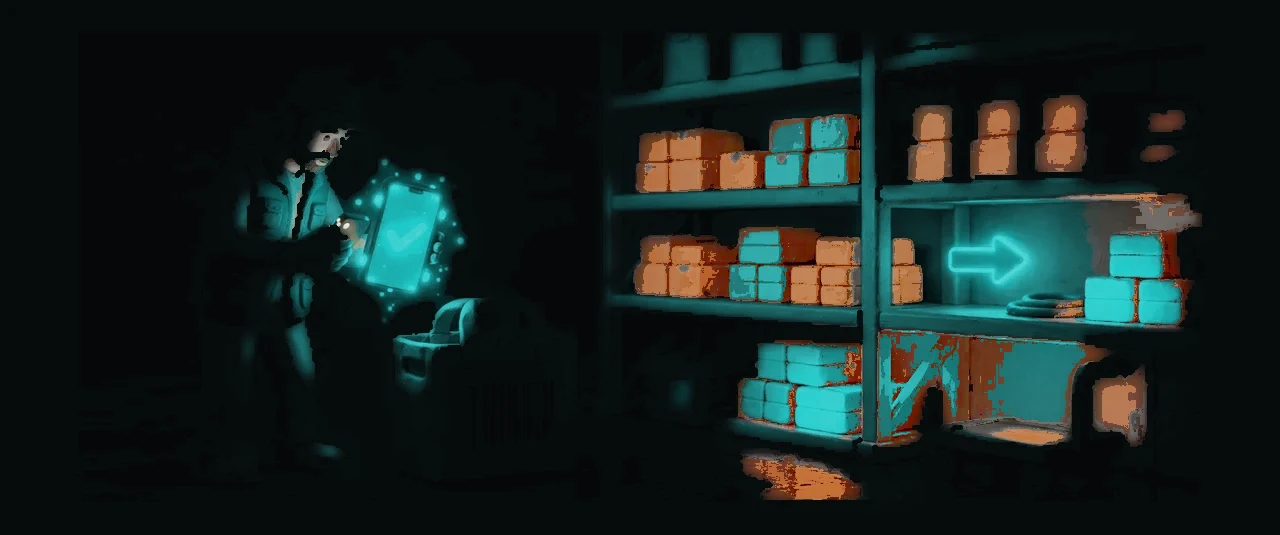
Every floor job is a task with steps, and every step is a scan. The phone shows one thing at a time — scan this location, scan this item, scan this tote — and a wrong scan stops the job with a plain-word message instead of letting the error travel downstream. Closing a task settles it for real: picked quantities are returned or voided by the book, and a task closed by force carries a mandatory reason and a step log, so nothing disappears quietly. The same task list is the single entry point on the phone and on the desk; a job finished on the phone is finished everywhere.
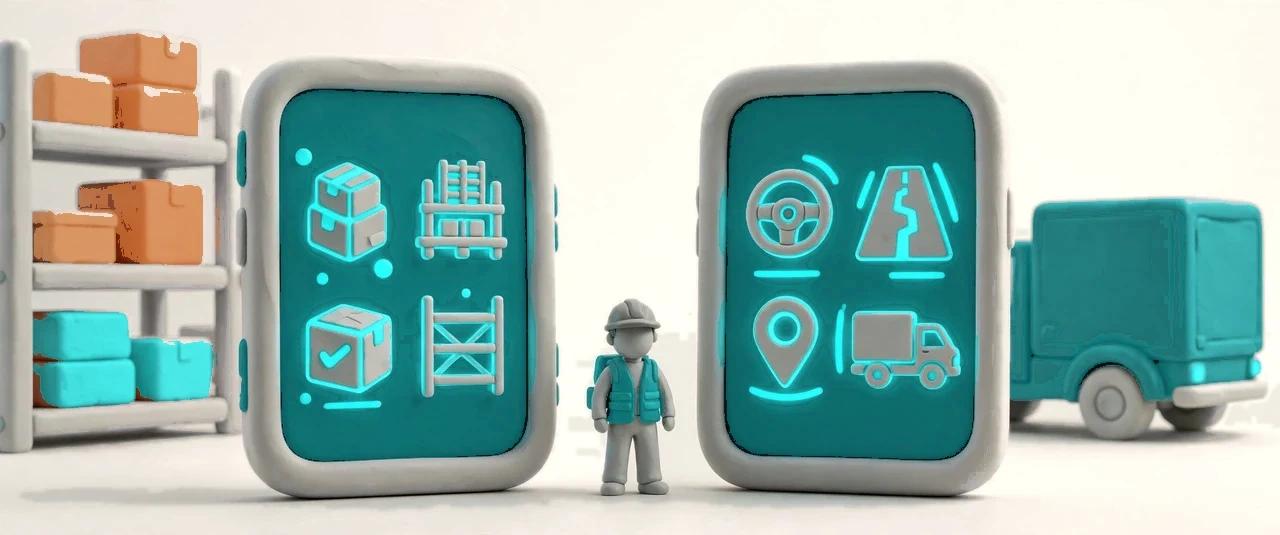
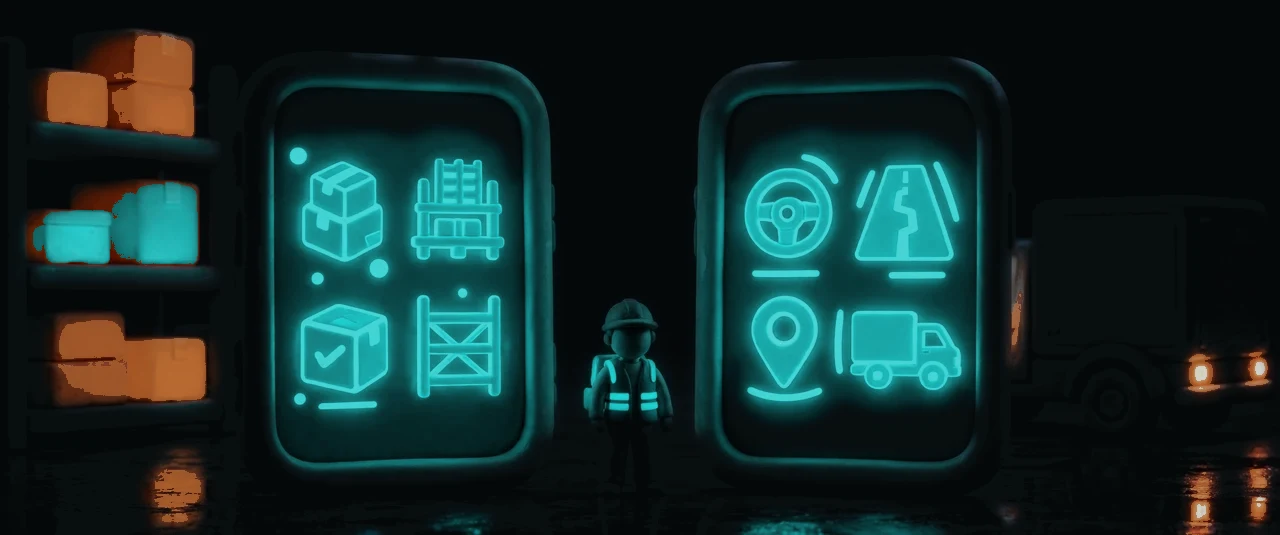
Every phone app is built on one design system, with WMS as the reference. Home always opens with the brand bar, a time-of-day greeting with your name, and the context row for your warehouse, vehicle or shift. The summary cards always answer the same four questions — waiting, in progress, done, exceptions — in your own numbers, never the whole warehouse pretending to be yours. More holds the standard menu, and anything you use every day pins onto Home in one tap. New apps are checked against the same rules before they ship, so the shell stays familiar no matter how many apps join it.
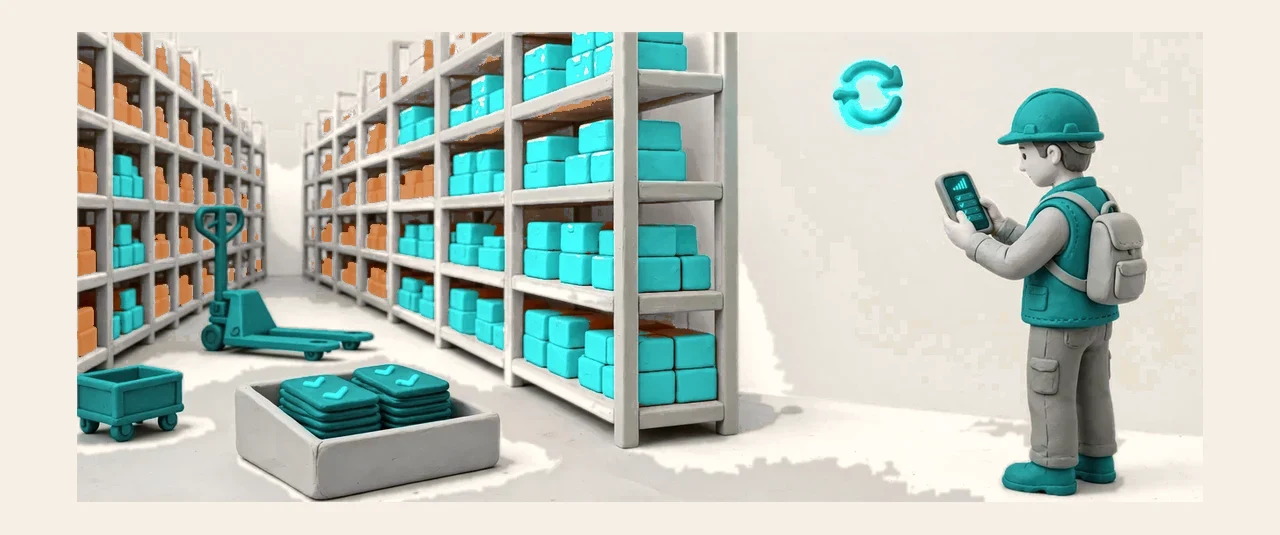
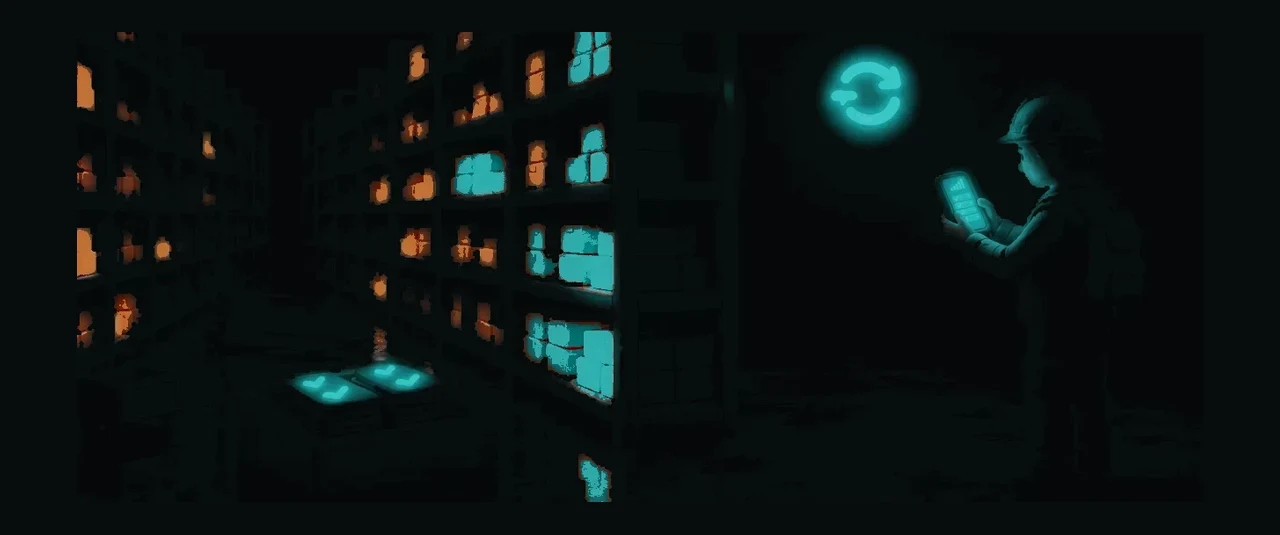
Signal dies in the far aisle, in the yard, at the gate — the work does not die with it. The phone records the intent locally, stamps it with an idempotency key, and holds it in the outbox until the connection returns; the server then applies it once, and a retry replays the same key instead of booking the same move twice. Before going offline the phone snapshots the basics it will need — dock lists, yard slots, your queue — and every offline screen shows the snapshot time, so nobody mistakes yesterday's list for live data. The boundary is stated on the screen: a dock created while you were offline appears on the next sync, not before.
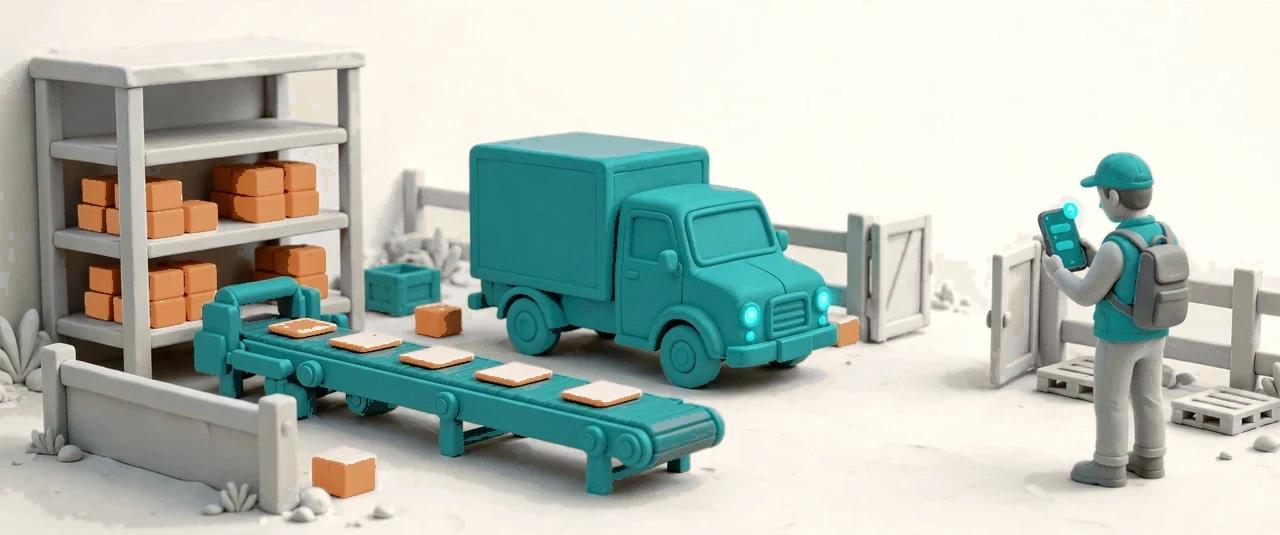
Every app talks through one inbox, and the badge on the Notifications tab is one number for all of them — capped, refreshed when you come back to the foreground, and never counted twice. A new task, an approval waiting on you, a truck at the gate: the alert arrives where you already are, on the phone in your hand, instead of waiting at a desk you left an hour ago. Open it and you land on the work itself, not on a dashboard that makes you hunt for it. When the queue is empty the phone says so plainly and tells you what to do next, instead of showing an empty picture.
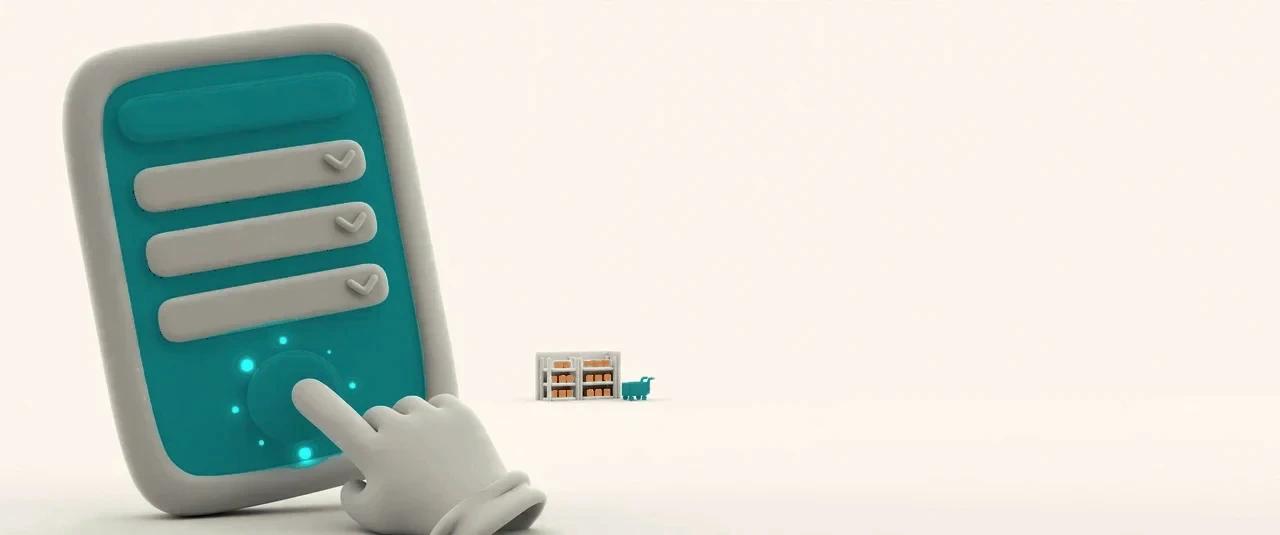

The phone is used with gloves, in motion, in bad light — so the forms are built for that. One job per screen, big tap targets, pickers instead of typing wherever a list will do, and numbers in a fixed-width face that never fades into the background. When something fails, the phone says what happened and what to do next in plain words; a crash shows a readable error page with retry and back, never a blank screen. Every page carries its loading, empty and error states by design: an empty queue explains itself and offers the next action, and a missing field degrades the display instead of breaking the page.
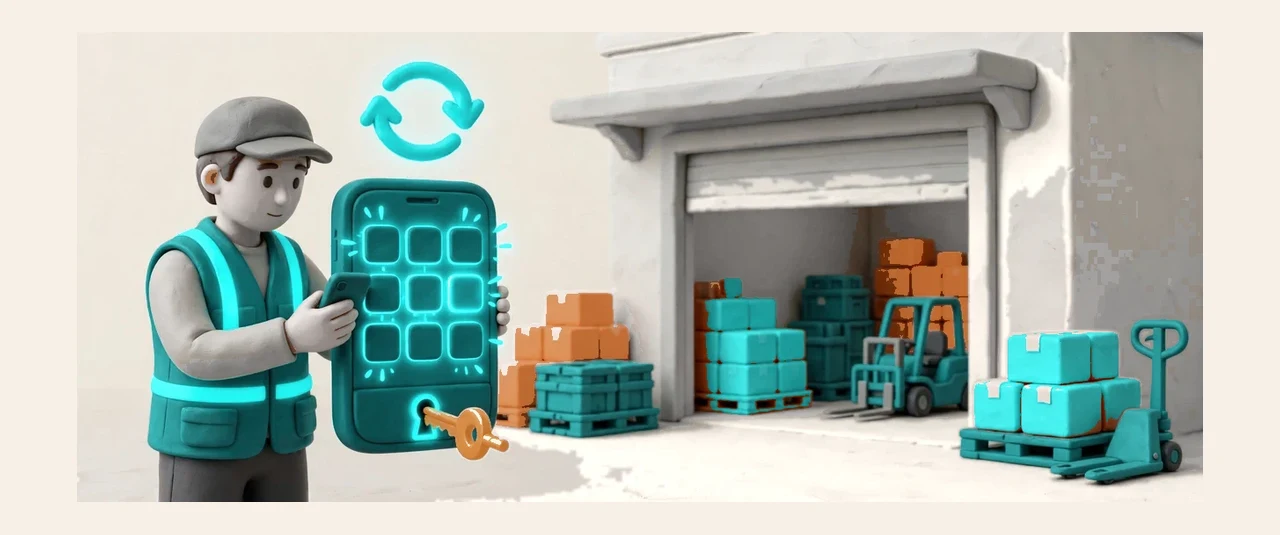
One sign-in opens all eleven apps, and the session follows the phone across them — switching from a warehouse task to a driver run does not ask for a password again. The same session rules guard the phone as the desk: sessions are checked on sign-in, exempt accounts are held in one shared list, and a sign-out clears the session everywhere it lived. Updates arrive inside the apps themselves, so the floor never waits for a store review or a reinstall to get the fix: open the app, and it is the current one. The phone is a work tool, and it behaves like one — ready when the shift starts, gone when it ends.
Eleven phone apps behind one sign-in; switch jobs without signing in again.
Your tasks, grouped by type, with a dot on the groups that still have work waiting.
Camera scan first, typed code as the fallback — the job never stops on a dead camera.
One inbox for every app, one unread count, refreshed whenever you come back.
Theme, language, app switching and sign-out live under More; daily tools pin onto Home.
A time-of-day greeting with your name, and one row for your warehouse, vehicle or shift.
Every page explains itself when it fails or stands empty — what happened, and what to do next.
Light and dark themes on every screen, and six languages — the phone reads the same in both.